How to move products between Network Dynamics accounts
This topic covers processes requiring access to your Network Dynamics Client Area. If you’re not sure how to access the Client Area, please follow this guide before continuing – How do I Login to my Network Dynamics Client Area?
You can move a hosting plan, SSL product or domain name from your account to another Network Dynamics account.
This can be done from within the Network Dynamics Client Area using the ‘Ownership Transfer’ tool.
PLEASE NOTE:
- When using this process to move domain names, it’s important to know that transferring domain names between Network Dynamics client accounts does not change the domain registration details.
- This process does not transfer unpaid or overdue invoices to the receiving account.
- Invitation URLs are valid for 72 hours. If the recipient does not approve the transfer of ownership via the link in the invitation email, you will need to resend the invitation.
To move an active service to another Network Dynamics client
1. First, login to the Network Dynamics Client Area that contains the service you’d like to move/transfer
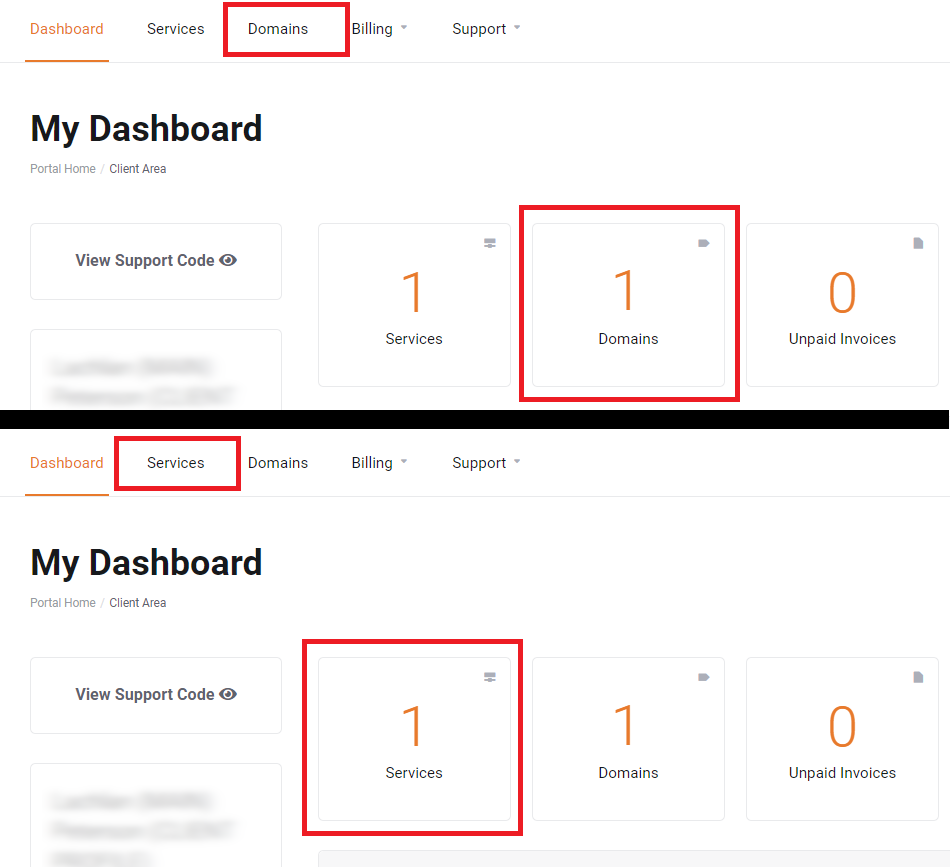
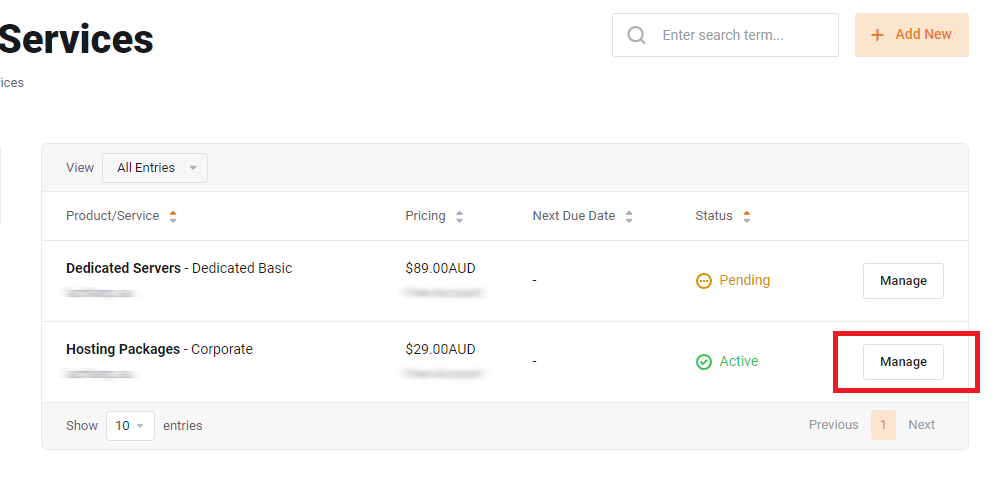
2. Find the service you wish to move and click ‘Manage‘ next to your product in the list
- Go to ‘Services‘ for Hosting or SSL products
- Go to ‘Domains‘ for Domain Names
3. After that, from the list of services, click ‘Manage‘ to the right of the product you want
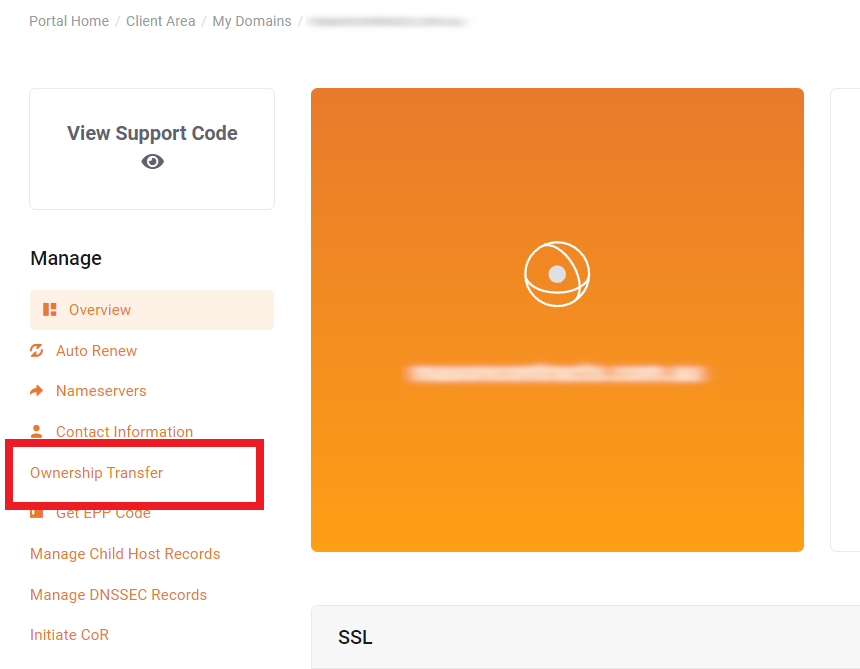
4. Then, click the ‘Ownership Transfer‘ found in the left sidebar
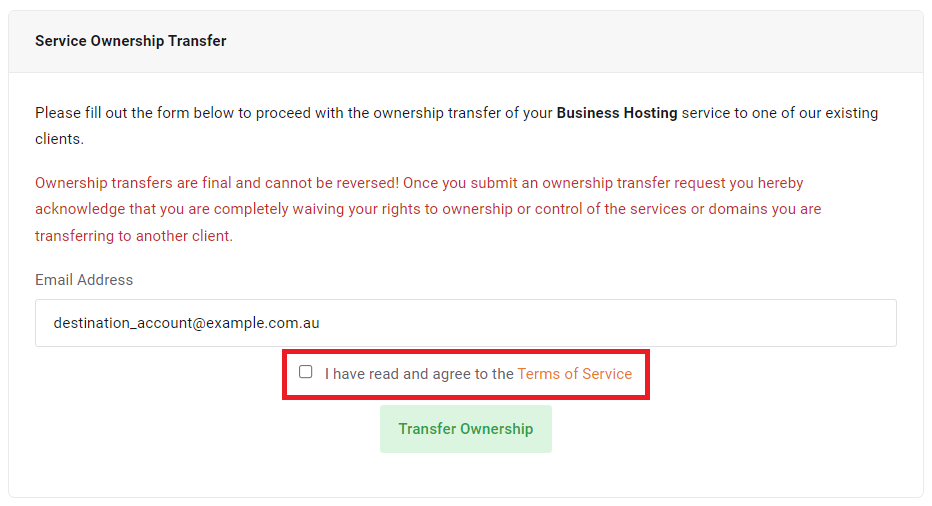
5. Finally, enter the email address of the Network Dynamics account that will be the recipient of the service you’re transferring (this should be the email address listed in the “Account Details” section of the recipient’s Network Dynamics Client Area)
- Be sure to confirm the correct email address
- Read and agree to the Terms of Service by ticking the checkbox
- Click ‘Transfer Ownership‘ when you’re ready
The recipient will receive an email asking them to approve or deny the transfer of ownership.
Once approved, we’ll add the service to their account and remove it from yours.
PLEASE NOTE:
- If you don’t receive an invite email, please confirm with the intended recipient that they provided the correct email address for their Network Dynamics account—the one listed in the “Account Details” section of their Network Dynamics Client Area.
- You can find the correct email in the ‘Account Details‘ section of their Network Dynamics Client Area (click the profile name, then select ‘Account Details‘ from the drop-down menu).
- If your intended recipient does not already have a Network Dynamics account, please contact support for additional information.