This topic covers processes requiring access to your Network Dynamics Client Area. If you’re not sure how to access the Client Area, please follow this guide before continuing – How do I Login to my Network Dynamics Client Area?
Paying an invoice by credit card is a smart, efficient way to streamline your billing process and enhance financial security. First, this method offers immediate confirmation and faster processing times, allowing you to manage your expenses with ease.
Pay an invoice #
By default, the services are configured to be paid automatically on the invoice due date, using the payment details saved on file. However, to pay an invoice manually by credit card, please follow the steps below;
1. First, login to the Network Dynamics Client Area
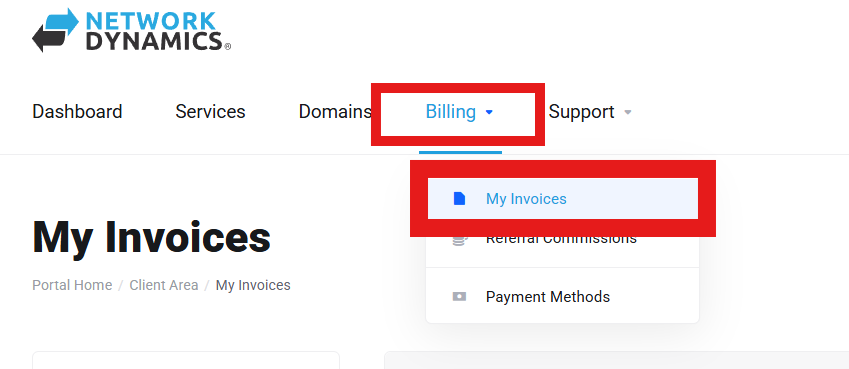
2. Click on the ‘Billing‘ menu, then select ‘My Invoices‘ from the drop-down menu.
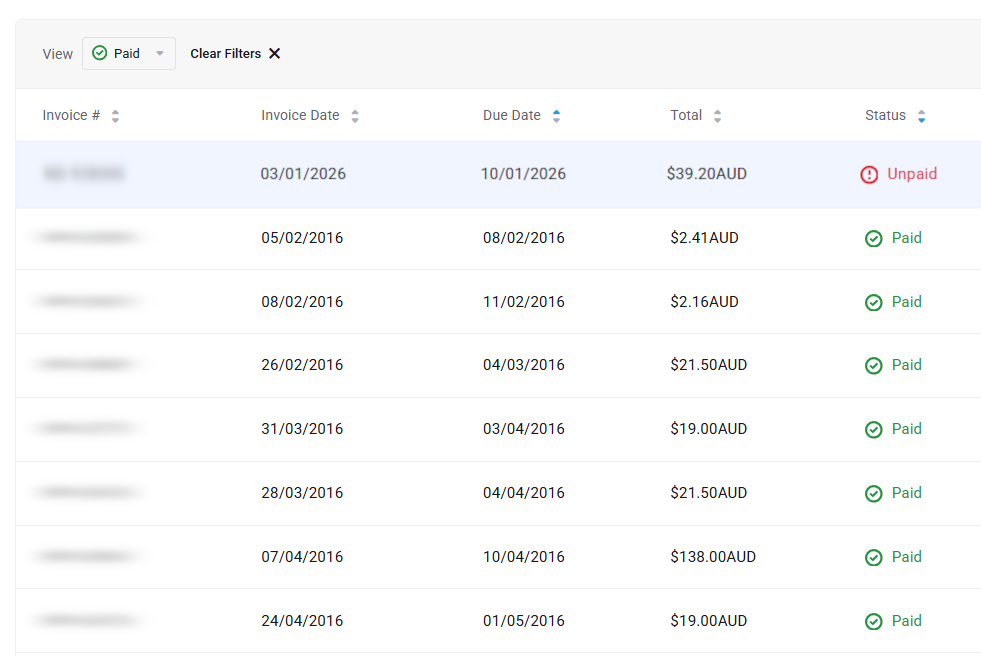
3. Find and select your unpaid invoice from the list
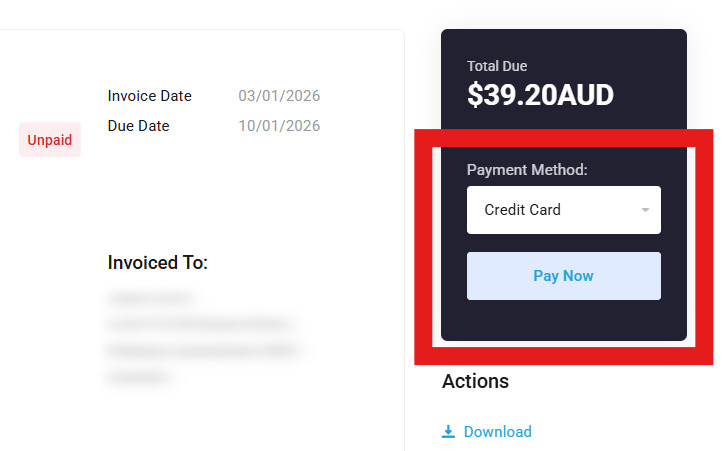
4. Select your payment method, then click ‘Pay Now‘.
If you need to add or update a credit card, please see our guide here: How to update credit card details
Download an invoice #
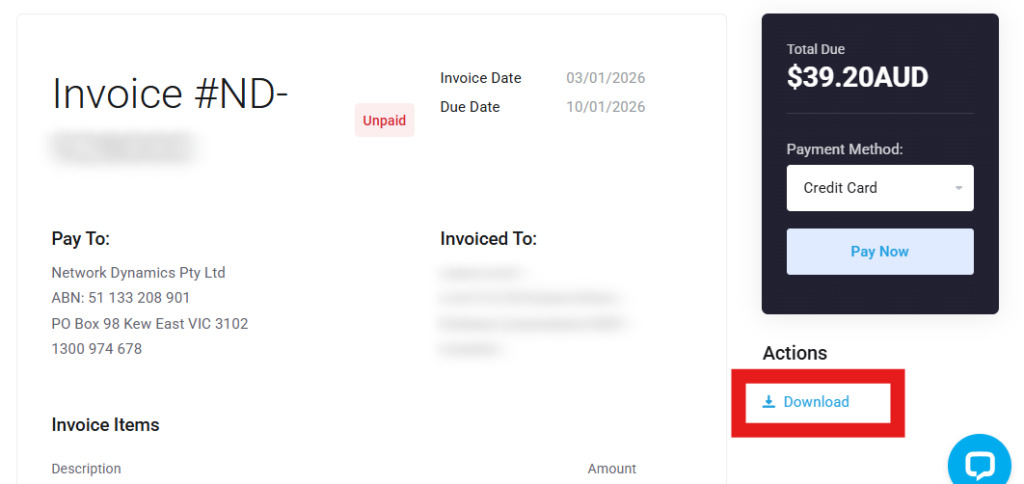
You can also download invoices as a PDF by selecting an invoice and then clicking ‘Download‘ listed under the ‘Actions’ sub-heading below the ‘Pay Now’ button.
In conclusion, if you want to pay an invoice by credit card, you’ll find the process both seamless and secure. By accessing your Network Dynamics Client Area and following the straightforward steps, you quickly locate your outstanding invoices and select a credit card as your payment method. This approach not only provides immediate confirmation and faster processing times but also enhances security for your financial data.
Moreover, choosing to pay an invoice via credit card simplifies your financial management, minimizes administrative hassles, and ensures uninterrupted access to your services. Ultimately, it empowers you to focus on growing your business while enjoying the convenience and efficiency of modern payment methods.