You will need to be logged into the hosting/cPanel account to follow the steps in this guide.
If you’re not sure how to access your cPanel service please follow this guide before continuing:
How do I Login to cPanel?
Why check cPanel disk usage? #
To effectively manage your hosting storage, it’s important to check cPanel disk usage regularly. This feature helps you identify how much disk space your files are using and where they are located. By monitoring your storage consumption, you can optimise space, prevent potential issues, and ensure your website runs smoothly.
To access the Disk Usage tool #
1. First, login to cPanel.
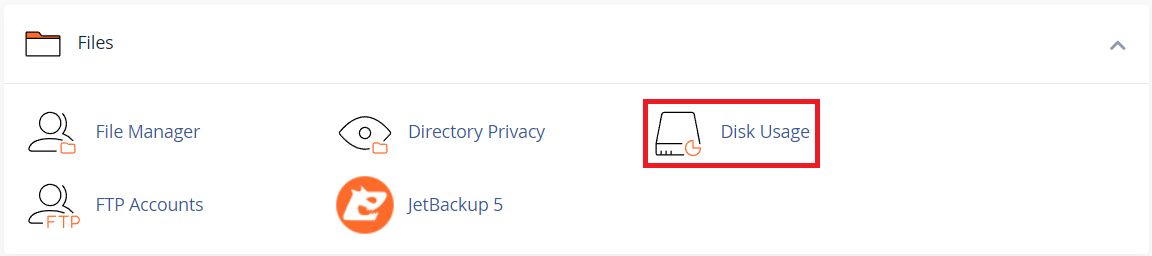
2. Then, from the ‘Files’ section, click the ‘Disk Usage‘ tool.
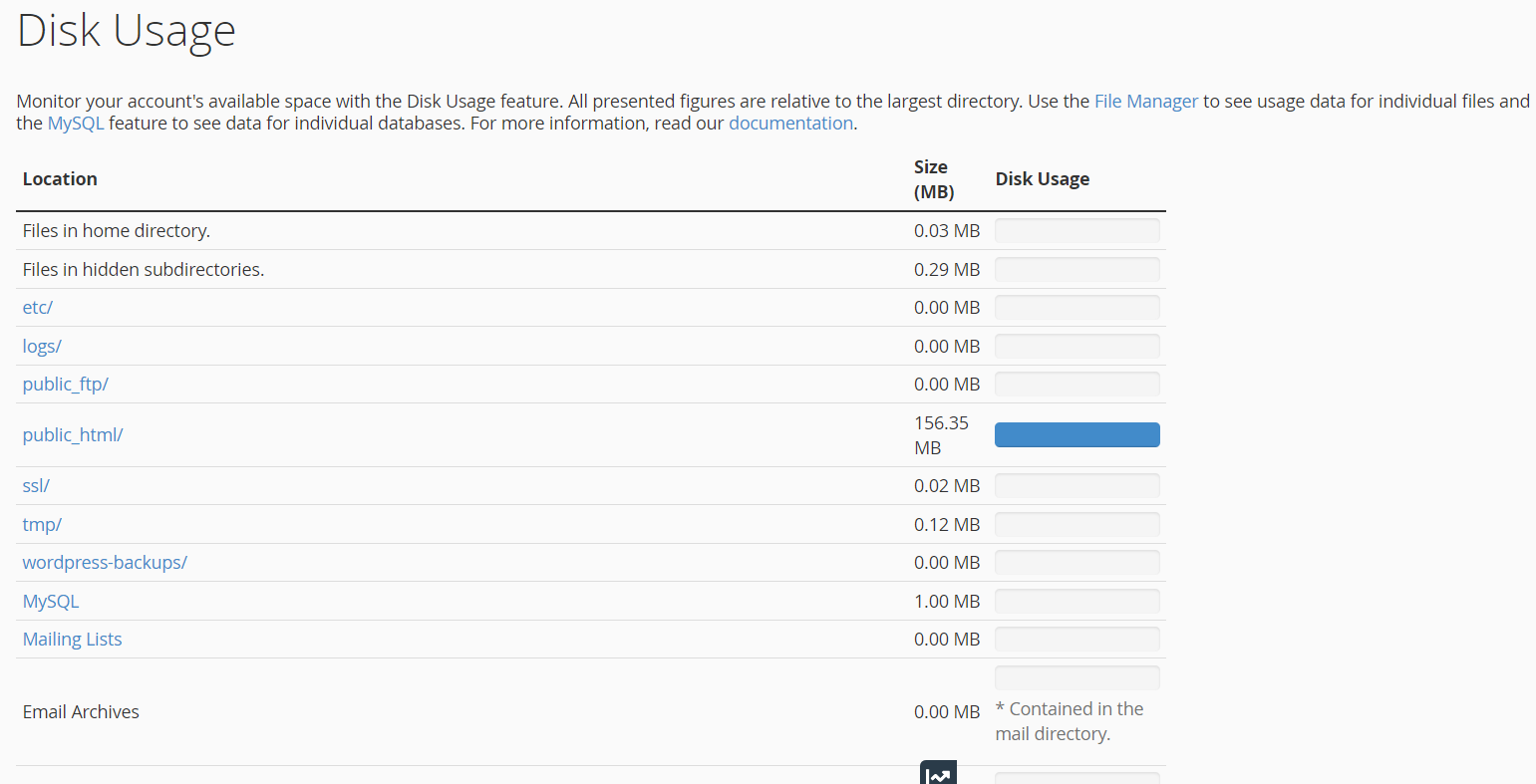
3. The Disk Usage page shows you a summary of your storage and which folders/directories are using the most space. For example, in the image below, you can see that the “public_html” folder is using the most space, as indicated by the blue bar.
Review disk usage #
4. Scroll further down the page to see a more detailed view.
At the ‘Sort directories by:‘ section, select the ‘Disk Usage‘ option. This will allow you to get more information about where exactly within the folder the disk usage is happening.
Then, clicking the “down arrow” icon next to the folder name will reveal its sub-folders and display the disk usage for each.
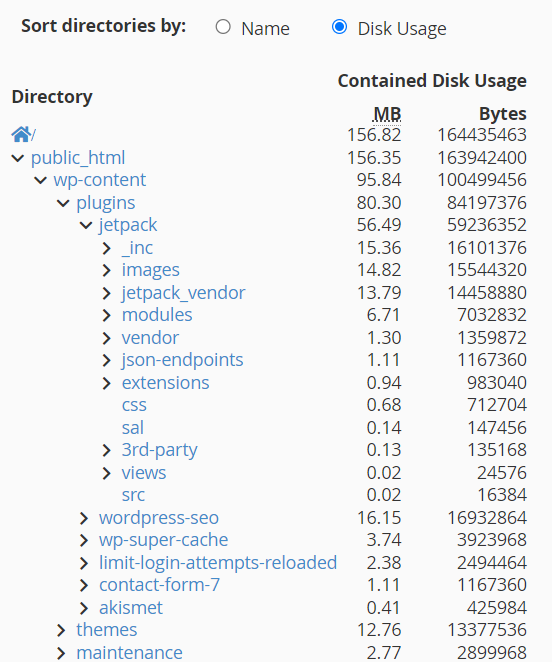
5. This is a great way to quickly identify what and where disk space is being used. Additionally, clicking the folder name (in blue) will open the File Manager to that folder.
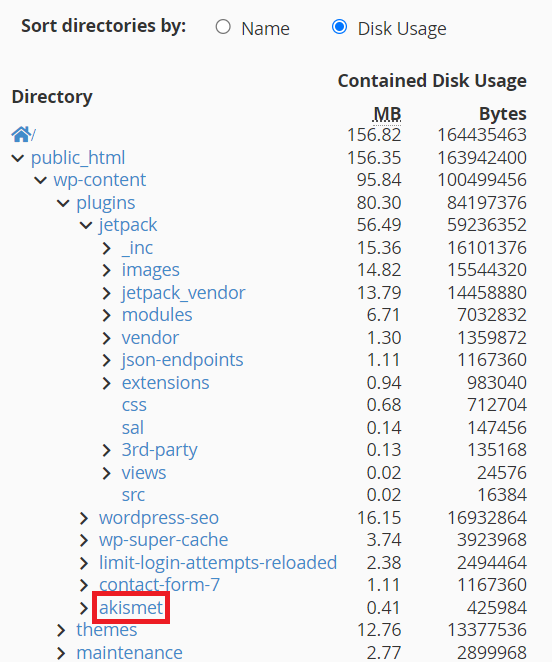
6. Finally, once you’re in the ‘File Manager,’ you can delete the files or folders that you want to remove to free up space.
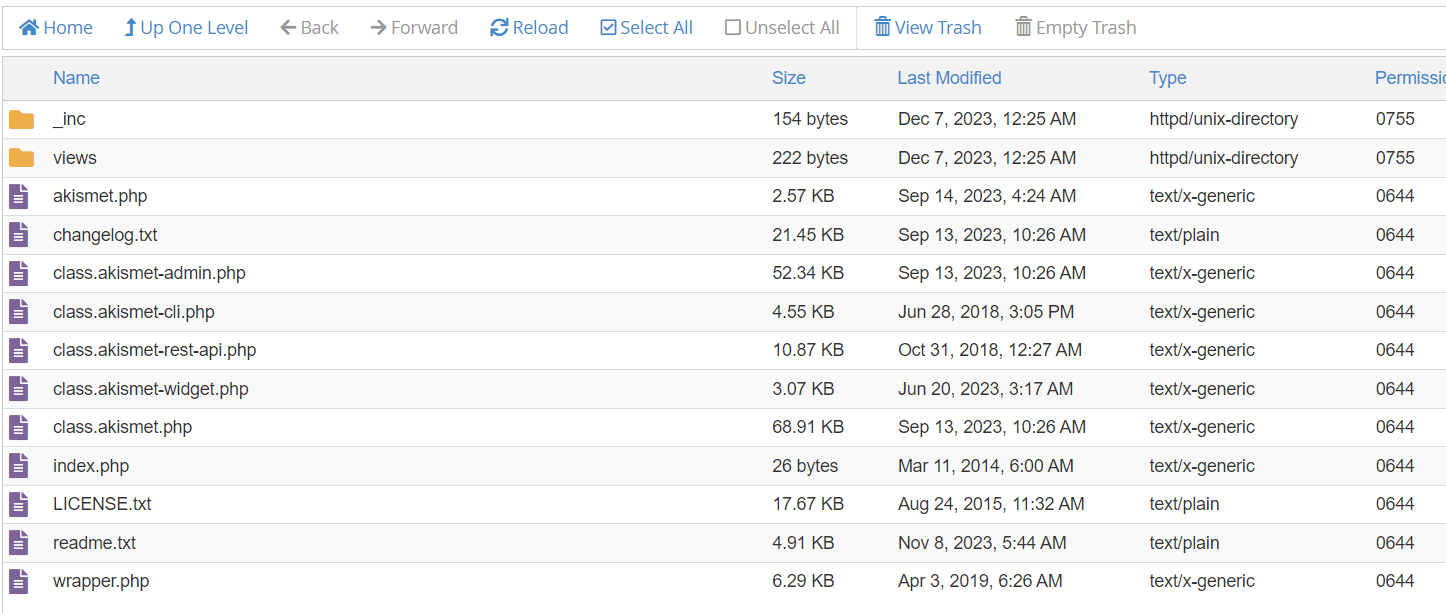
The Disk Usage tool in cPanel provides valuable insights into your website’s storage consumption. It helps you manage your storage space more efficiently.
By regularly reviewing your files and disk usage, you can ensure optimal performance and avoid potential issues. This ultimately enhances the overall experience for both you and your website visitors.
To manage your email storage, you can click on this guide: Managing Email Disk Space in cPanel
Conclusion #
Regularly checking cPanel disk usage helps you manage your storage efficiently and prevent unnecessary space consumption. Then by keeping track of which folders are using the most storage, you can optimise your files and maintain a well-organised hosting environment. Finally, make it a habit to check cPanel disk usage to ensure your website runs smoothly.