What is causing this? #
If you find that your cPanel-hosted email doesn’t display properly in Webmail, as shown in the example image below, it could be due to using Cloudflare nameservers or proxying services on the domain name.
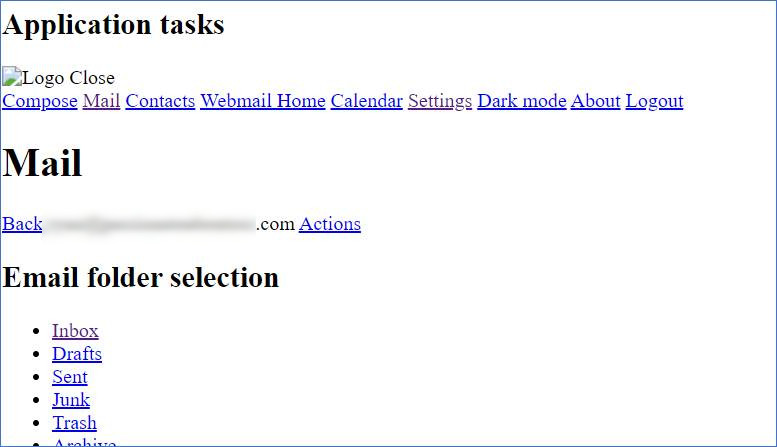
Because Cloudflare handles data through its proxy services in a particular way, you may experience disrupted formatting on cPanel’s Webmail interface when you access it using your domain URL (e.g., “example.com.au/webmail” or “webmail.example.com.au”).
A workaround solution #
A workaround to fix Webmail display issues is to access Webmail directly via the hostname of the server.
To find the hostname of your cPanel/hosting service;
1. Login to cPanel via the Network Dynamics Client Area
2. Once logged in to cPanel, take note of the URL in your browser’s address bar
3. For all shared hosting services, the hostname will be displayed in the address bar in the following format:
- https://server-XXX.wphosting.com.au or https://server-XXX.networkdynamics.com
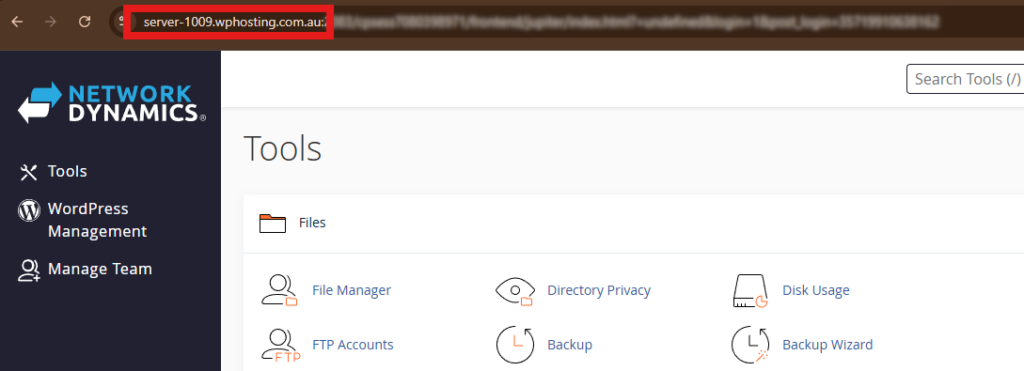
Now that you know the hostname of your cPanel service, add “:2096” to the end, then type this address into a web browser.
Using the image above as an example, you would visit
“https://server-1009.wphosting.com.au:2096” to access Webmail.
Be sure to change the hostname to match your particular cPanel/hosting service and don’t forget to add the port number, “:2096” at the end.