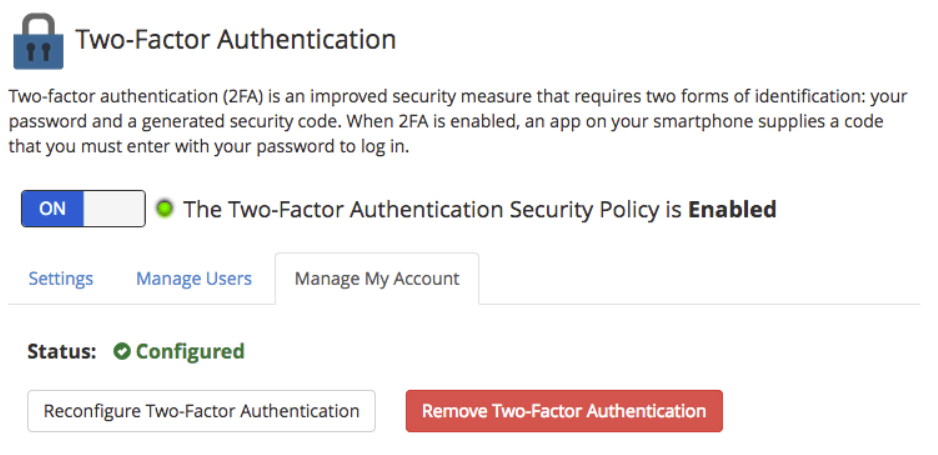
Enable MFA or 2FA on WHM/cPanel servers to add a vital layer of security beyond just a password. This extra measure not only bolsters your system against unauthorised access but also provides peace of mind knowing your critical data remains secure.
Enhancing the security of your WHM/cPanel servers is crucial in today’s digital landscape. Enable MFA or 2FA on WHM/cPanel to ensure that every login requires both your password and a regularly changing code from your authentication app.
Two-Factor Authentication means you need two things to log in: your password and a code from the app. This code changes regularly, so you must have both your password and the correct code to access WHM.
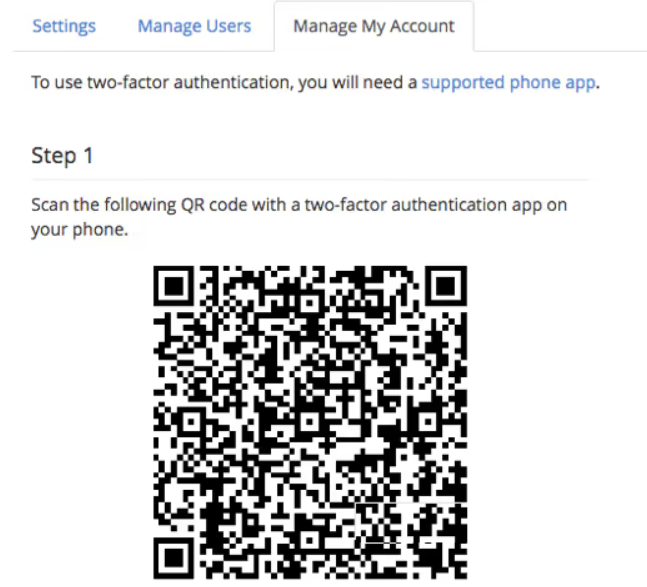
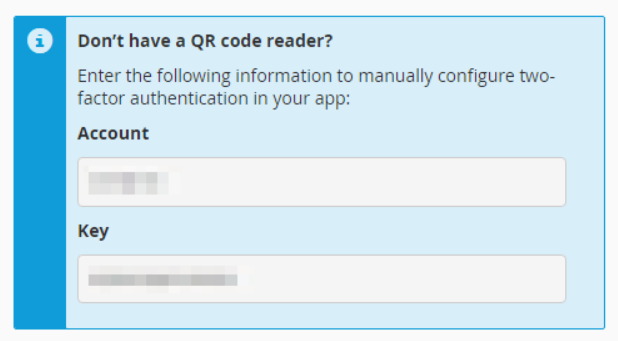
Before you can turn on Two-Factor Authentication for a user, they need to download an app like Google Authenticator. With this app, they will enter a key or scan a QR code provided during the setup.
Into WHM #
1. First, login into your WHM
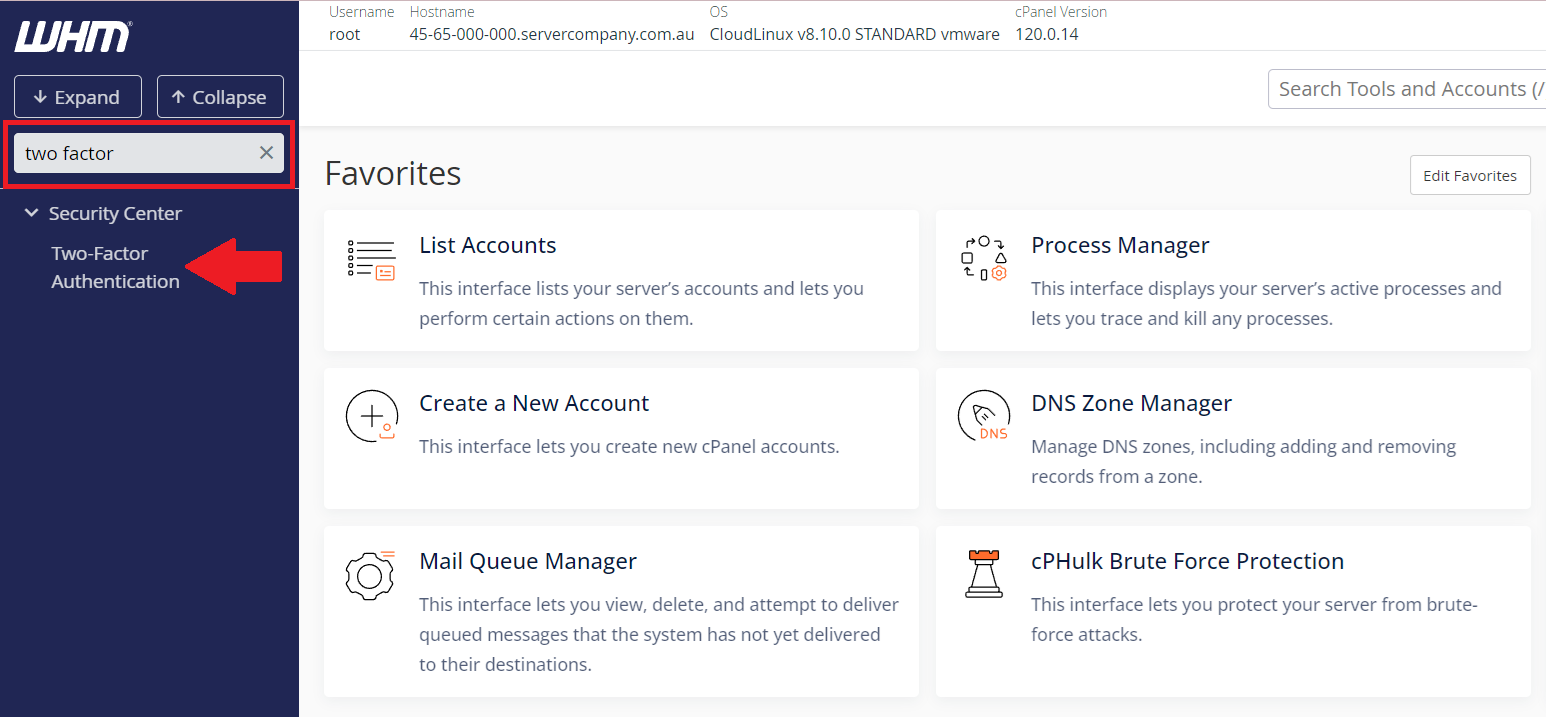
2. Then, type “Two Factor” in the search bar in the left side menu. Click ‘Two Factor Authentication‘ from the search results.
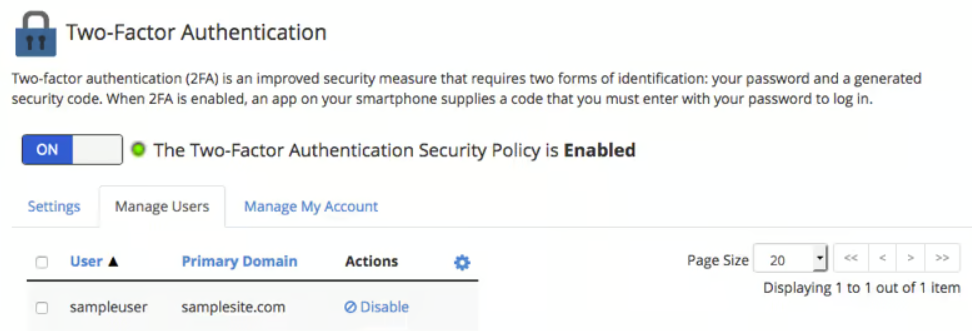
3. Two-factor authentication is off by default. To enable it, toggle on/off the button shown below.
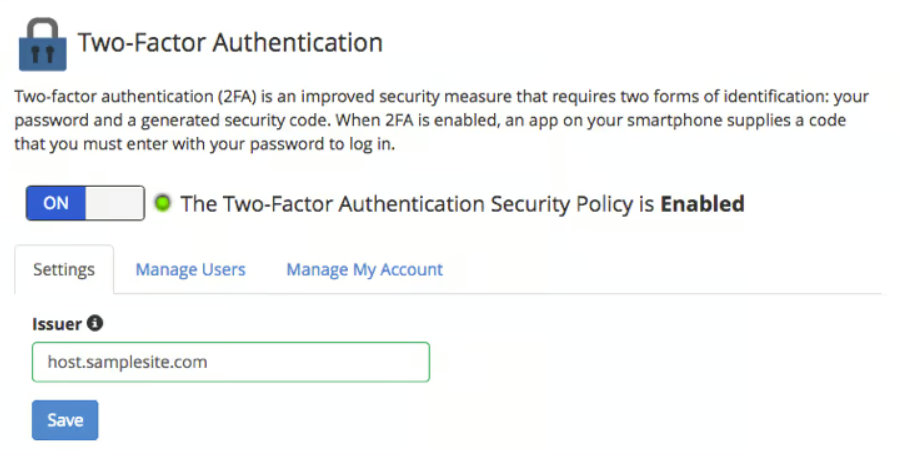
Manage users #
4. The Manage Users tab will remain empty until you set up two-factor authentication for each cPanel user. To do this, follow our guide: Enabling Two-Factor Authentication in cPanel.
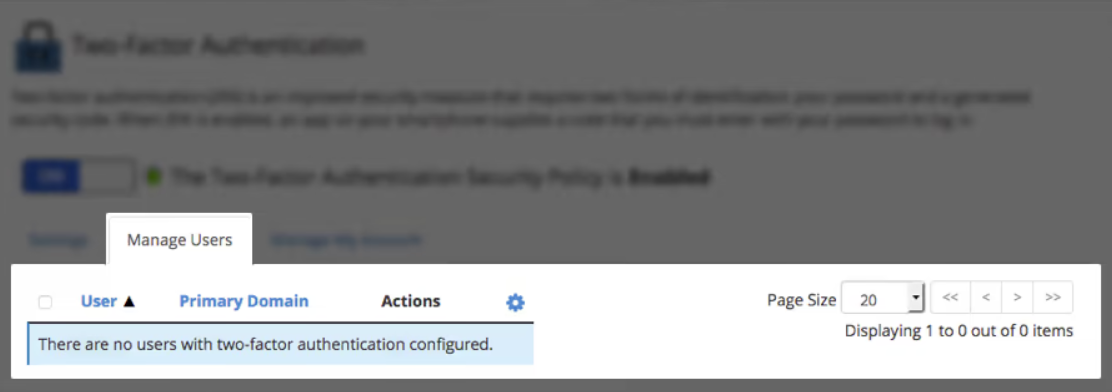
5. Once Two-Factor Authentication is turned on for a cPanel user, they will appear in the Manage Users section.
Setup two-factor authentication #
6. Then, set up Two-Factor Authentication in the ‘Manage My Account’ tab.
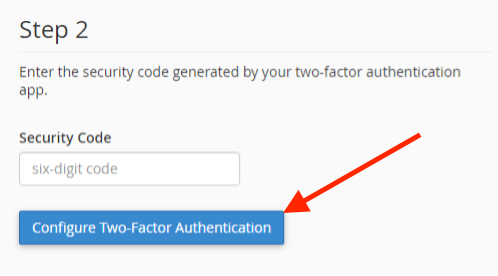
7. Enter the code from the authenticator app on your phone then click the ‘Set Up Two-Factor Authentication’ button to finish.
8. Finally, you will see a success page showing that Two-Factor Authentication is set up for your WHM access.