To get started, configure SSH or SFTP users on your Enterprise hosting service to ensure that only authorised personnel have secure remote access. This essential step not only protects your sensitive data but also guarantees that file transfers via SFTP remain safe and reliable.
How to use SFTP (Secure FTP) #
To access files on your Enterprise hosting service remotely, you can connect via SFTP, which is a more secure alternative to FTP (FTP is not enabled by default).
Before you can connect, you must configure SSH or SFTP users on your server. This step is essential for secure remote access, as it ensures that only authorised individuals can access your files. Once you have configured SSH or SFTP users, you can log in with your credentials and manage your files safely.
Login to your Enterprise hosting service #
1. Log into your Enterprise hosting service
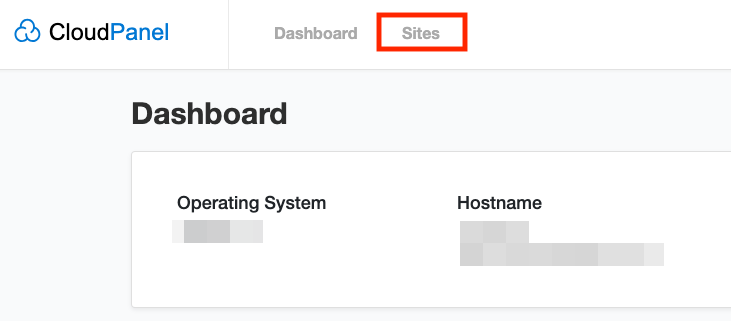
2. Navigate to ‘Sites‘ from the top menu
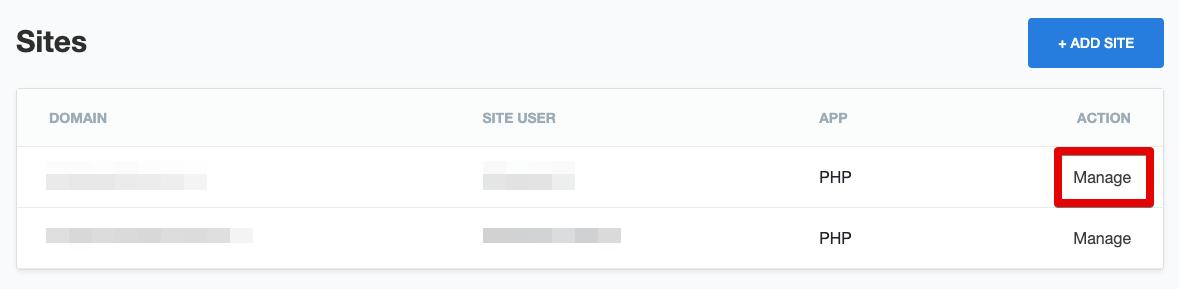
3. From the list of sites, click ‘Manage‘
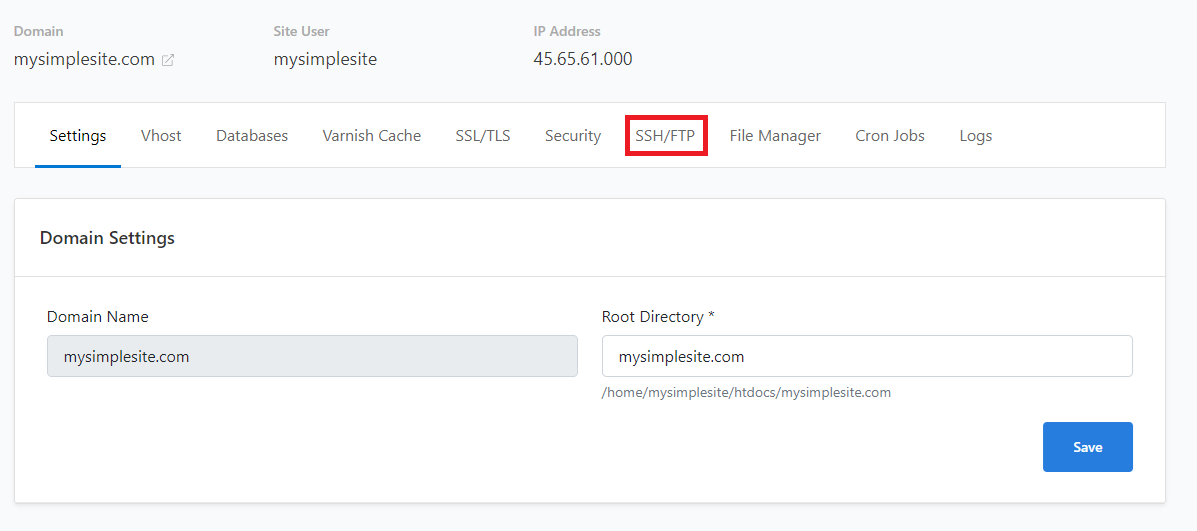
4. Next, click the ‘SSH/FTP‘ tab
Create and Configure SSH or SFTP Users #
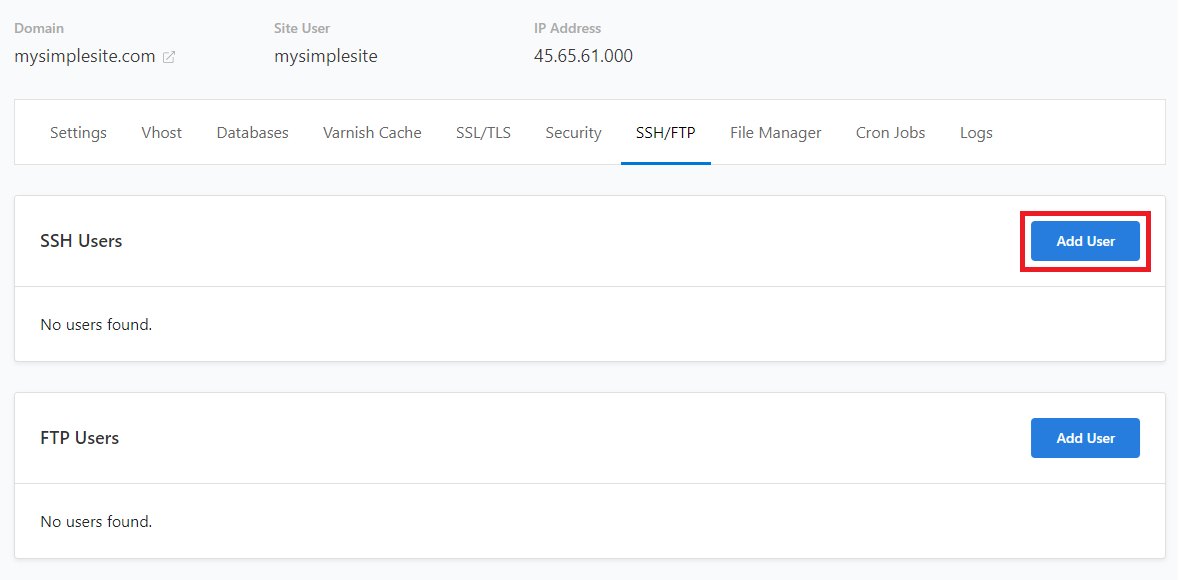
5. Then click on ‘Add User‘ in the “SSH Users” section
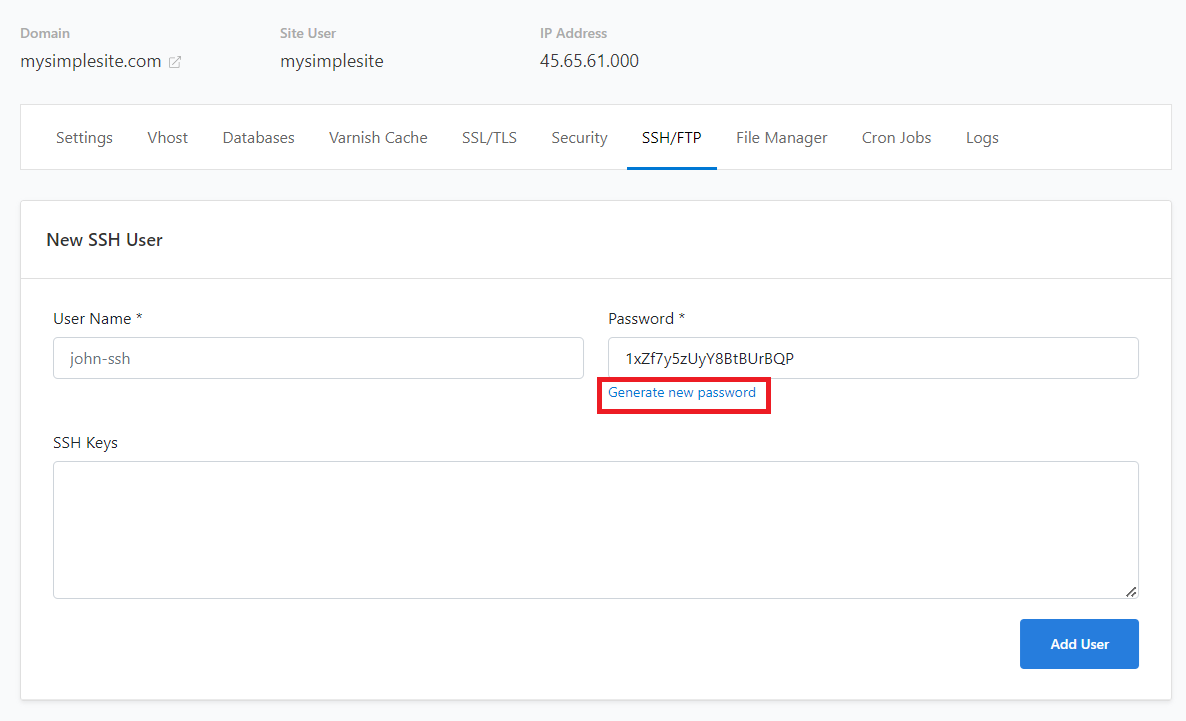
6. Enter a username and password for the new SSH user.(Optionally, you can click ‘Generate New Password’ to create a random one)
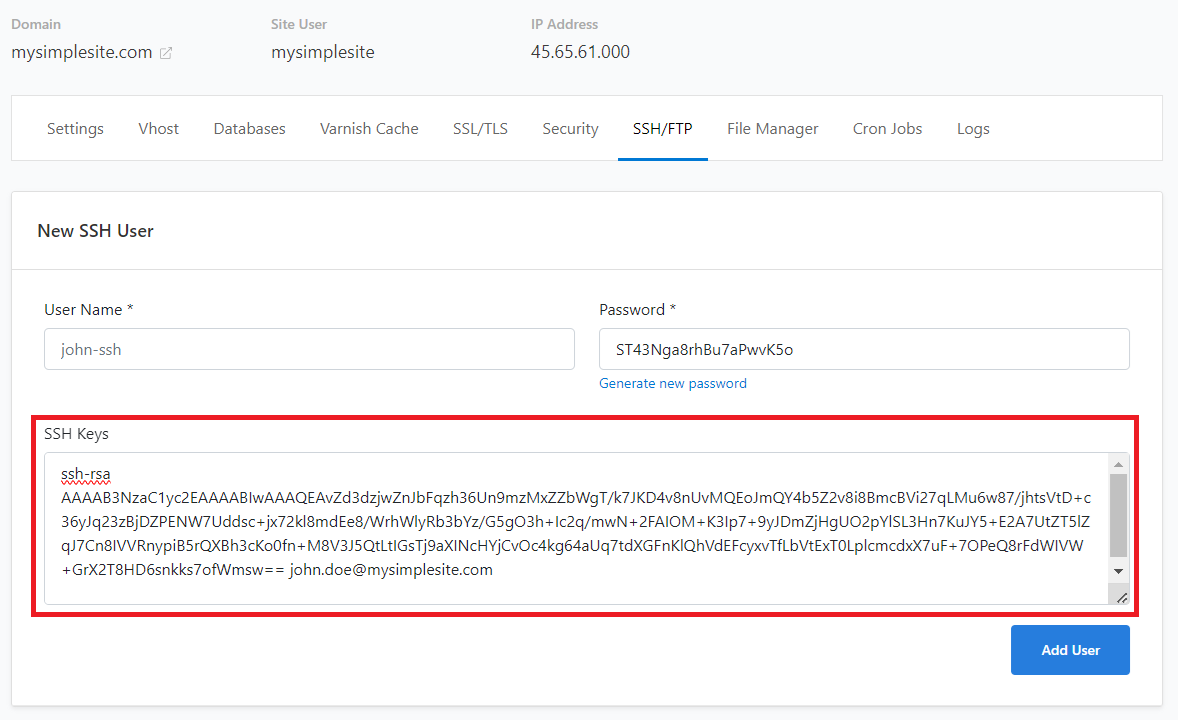
7. Adding public SSH key(s) is optional. Leave this blank if not using.
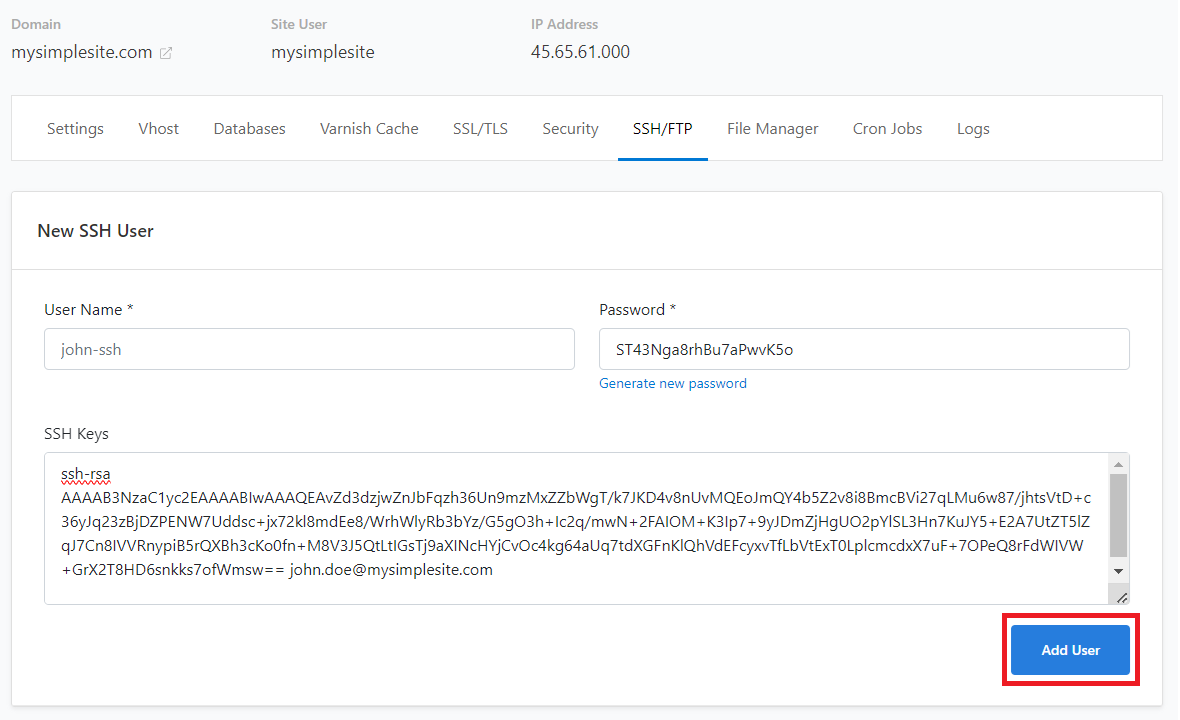
8. Click ‘Add User‘ when you’re done to save the SSH user details.
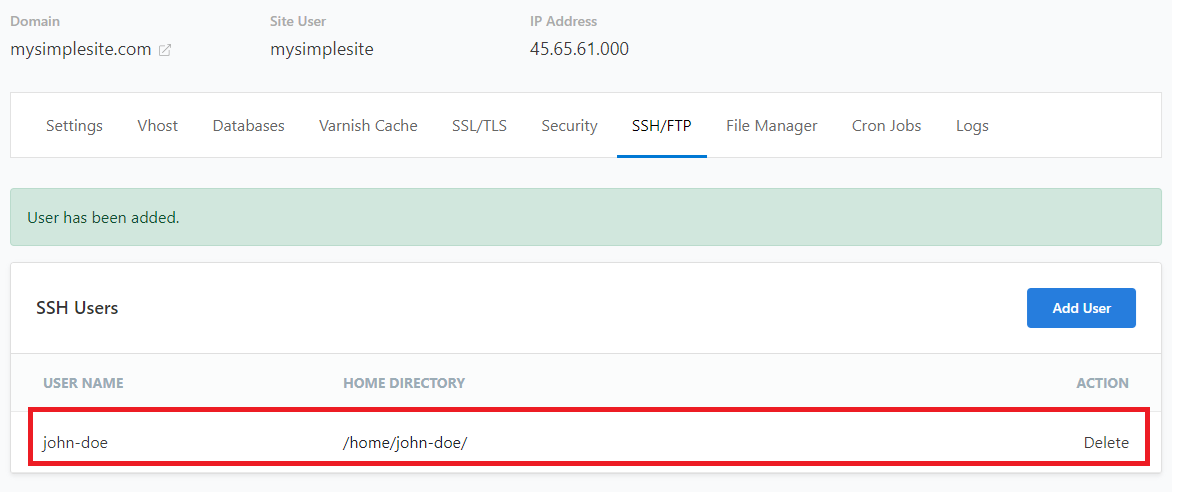
9. Once you’ve saved your changes, you’ll see the list of SSH users.
(you can also remove existing users by clicking ‘Delete’ next to their name in the list)