This topic covers processes requiring access to your Network Dynamics Client Area. If you’re not sure how to access the Client Area, please follow this guide before continuing – How do I Login to my Network Dynamics Client Area?
What are Nameservers (NS)? #
The Domain Name System (DNS) uses ‘DNS records’ to direct web and email traffic to the correct destination. Changing nameservers is sometimes necessary to ensure your domain points to the correct hosting provider or DNS management service.
Your DNS records tell others where to find your website or where to deliver mail addressed to your domain. Nameservers store and manage these DNS records for your domain name.
If you have a hosting package or DNS management service with us, you would typically be using Network Dynamics’s nameservers. However, there may be cases where you need to use other nameservers and manage DNS records externally.
By default, domains registered here with us will have our nameserver settings applied.
Network Dynamics nameservers #
- ns1.dnsrecord.com.au
- ns2.dnsrecord.com.au
Access the nameserver options #
1. First, login to the Network Dynamics Client Area
2. In your Client Area dashboard, click the ‘Domains‘ button
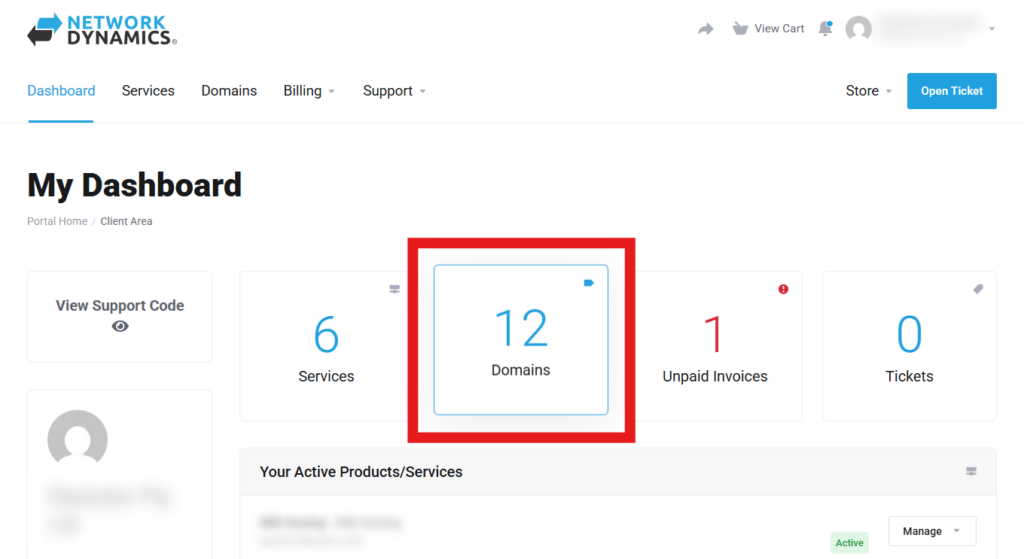
3. Find your domain in the list, then click the ‘Manage’ button.

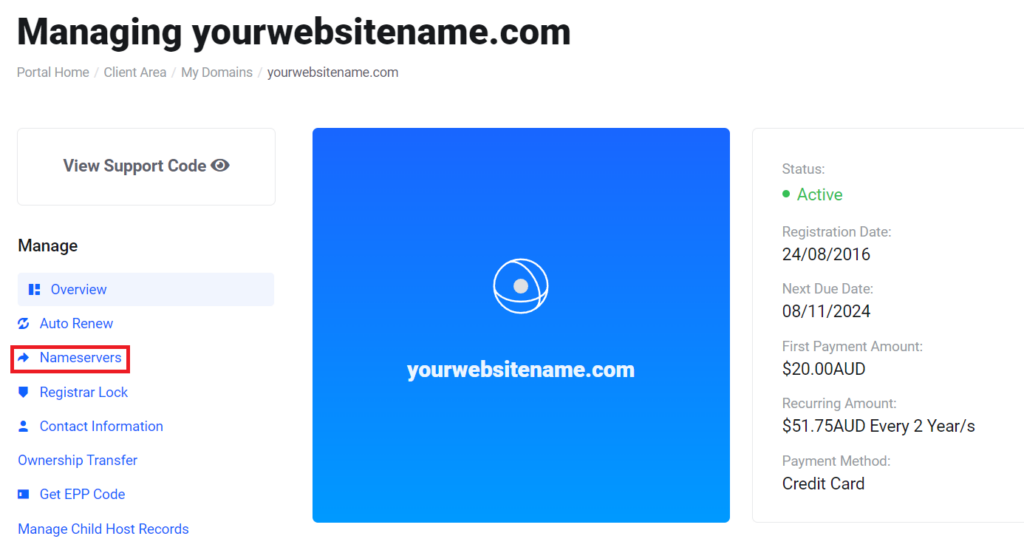
4. Next, click the ‘Nameservers‘ button on the left.
To use the default Network Dynamic name servers #
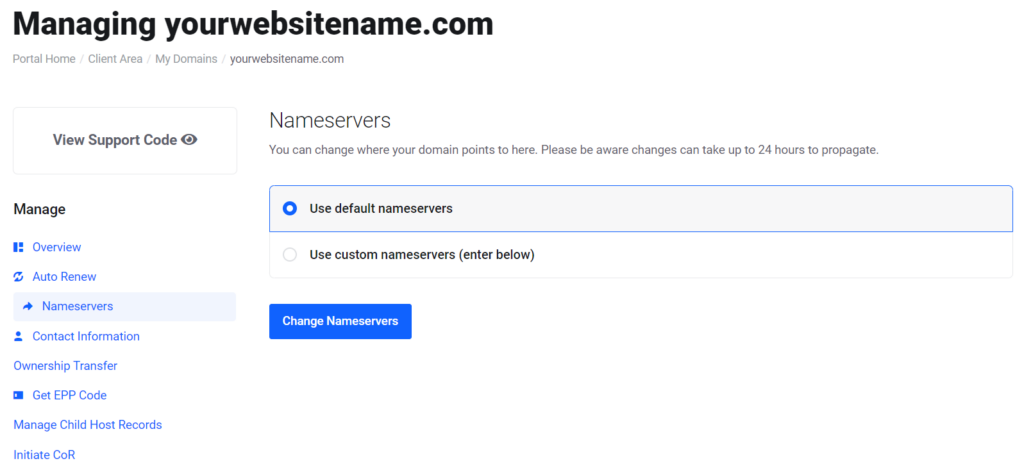
5. From the domain management options, you can use Network Dynamics’s default name servers (click ‘Use default nameservers‘) or use custom name servers if your DNS records are managed elsewhere.
To use custom name servers
#
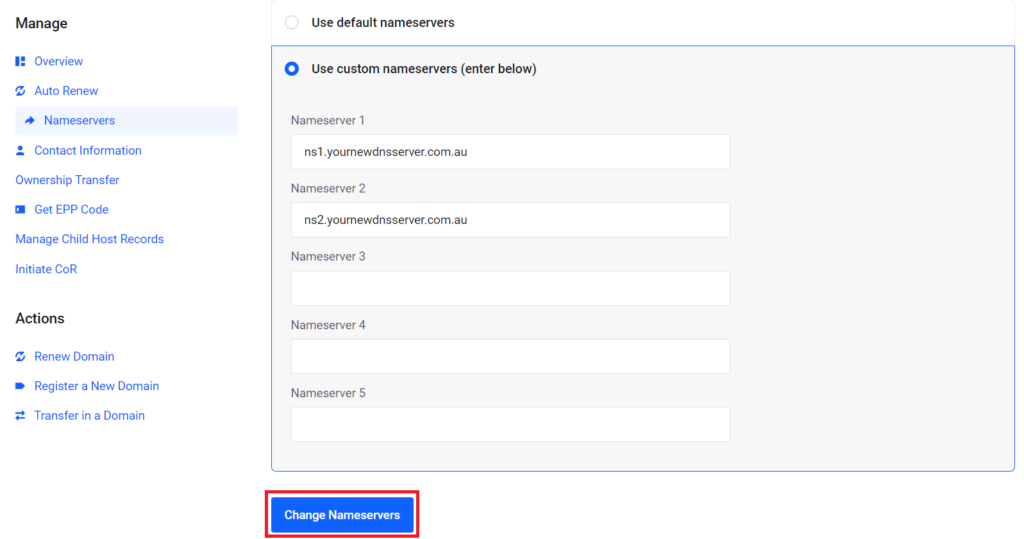
6. To use custom nameservers, click the ‘Use custom nameservers‘ option. Enter your custom nameserver addresses here (some providers may have multiple nameserver records (e.g. ns1. ns2. ns3.), make sure to enter them all).
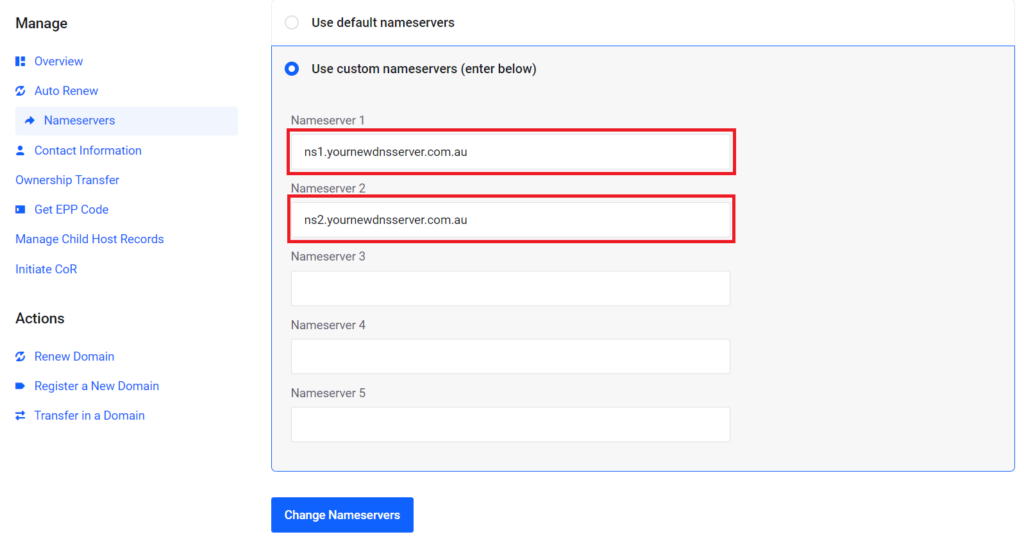
7. Then, click ‘Change Nameservers‘ to save the changes.
8. Once the nameservers have been updated, DNS records for your domain will then be hosted and managed at the location specified by the custom nameserver address(es) you entered in step 6.
PLEASE NOTE: Changes to nameservers may take up to 48 hours to update, and you can expect mixed results with your services during this period.