How to update credit card details
You will need to be logged into your Network Dynamics Client Area to follow these steps.
If you’re not sure how to access the Client Area, please follow this guide before continuing - How do I Login to my Network Dynamics Client Area?
You can easily update your credit card details from within your Network Dynamics Client Area.
Keeping your payment information up to date helps prevent service interruptions and ensures smooth billing. In this guide, we’ll walk you through the steps to securely update your credit card details.
To add or update credit card details
1. First, login to the Network Dynamics Client Area
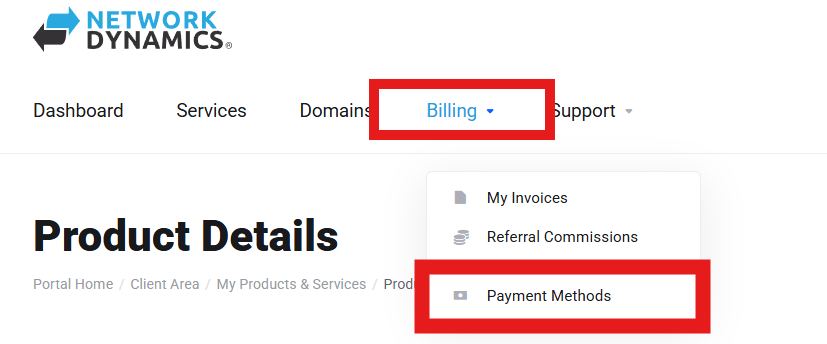
2. Then, from the 'Billing' menu at the top, select 'Payment Methods' from the drop-down menu.
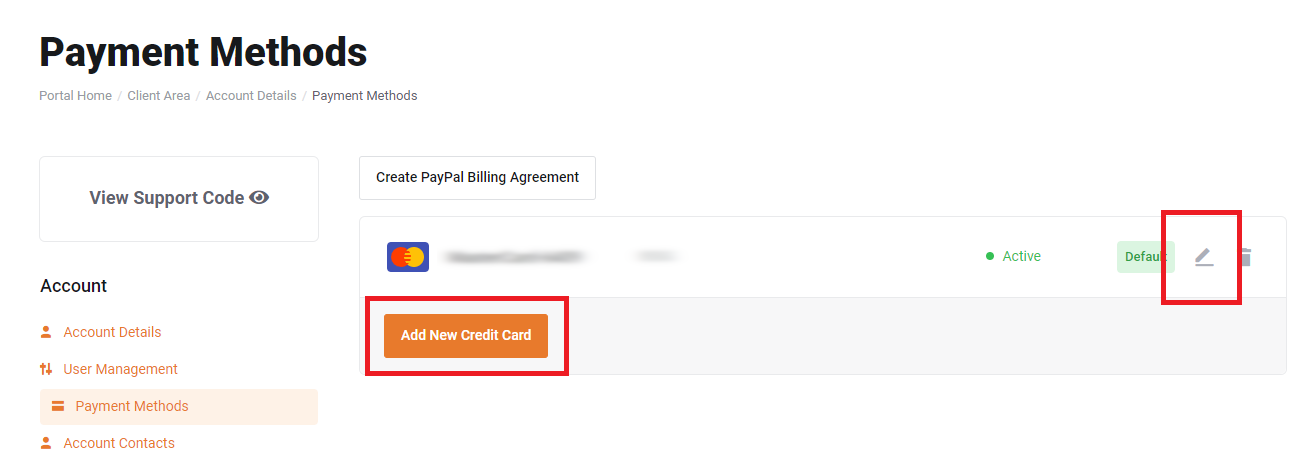
3. Add or edit the card details here:
- To add a new card, click 'Add New Credit Card' to the left
- To edit existing card details, click the 'edit' button to the right
(looks like a small pen and paper icon).
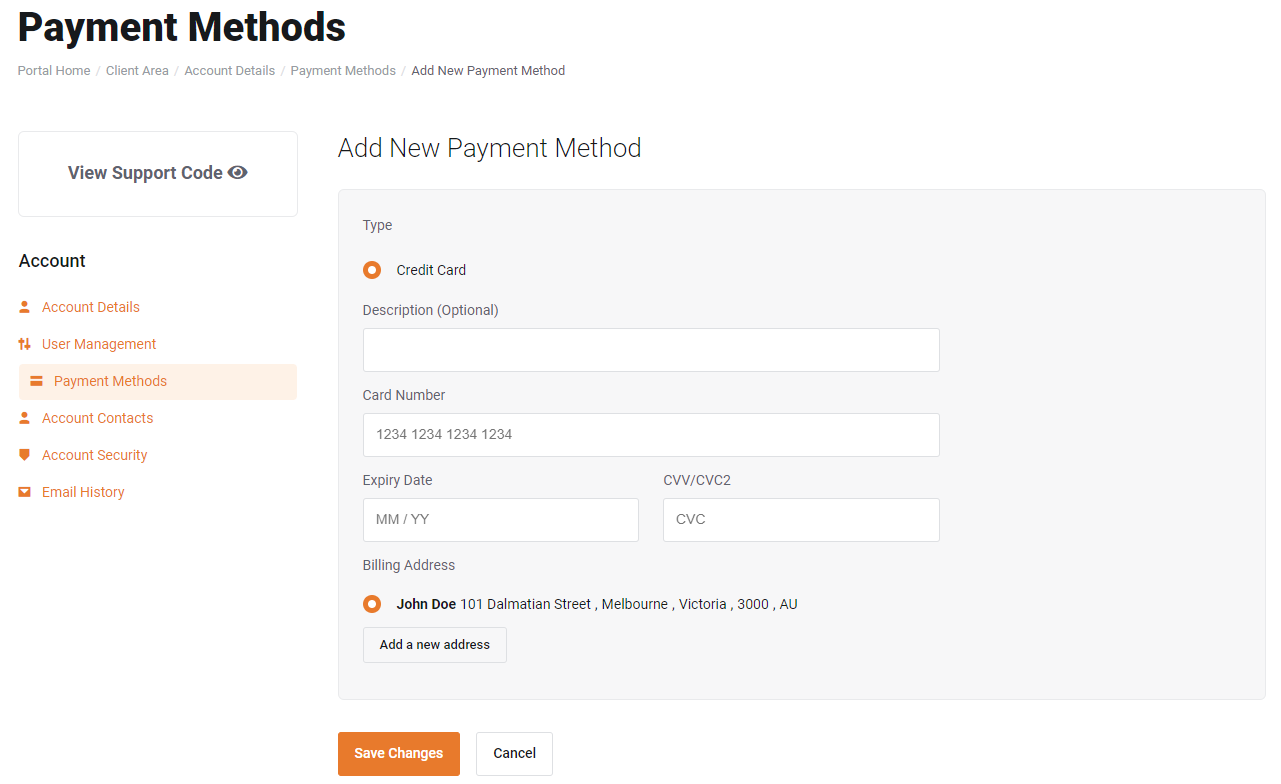
4. Finally, enter new or edit existing credit card information accordingly, then click "Save Changes" at the bottom of the page when you're done
To remove credit card details
To remove previously saved credit card details, click the "Delete" button (icon looks like a garbage bin)
Future invoices will now be paid automatically from the credit card selected as "default".