How to setup PayPal for automatic payments
Completing the steps in this guide requires access to your Network Dynamics Client Area.
If you’re not sure how to access the Client Area, please follow this guide before continuing – How do I Login to my Network Dynamics Client Area?
IMPORTANT NOTE
If the invoice is overdue, only the 'Make Payment' option will be available - this is because PayPal subscriptions can only be set up for invoices that are NOT overdue.
If your invoice is overdue, you will need to pay this invoice using a different method, and then setup the subscription using the next invoice.
To setup a PayPal Agreement/Subscription
1. First, login to the Network Dynamics Client Area
2. Your due invoices can be found by going to: Billing > My Invoices
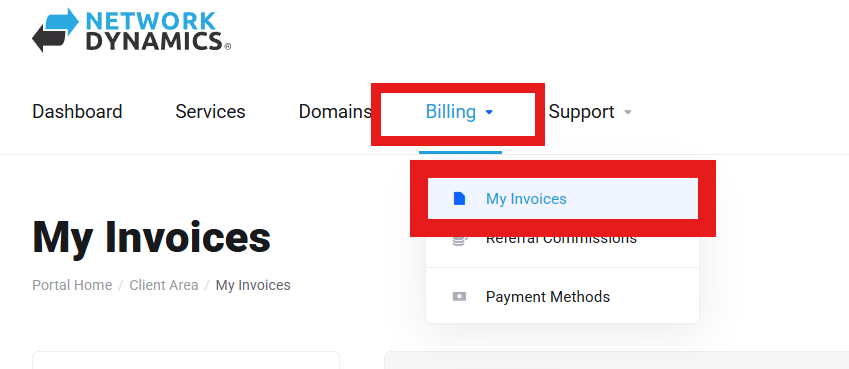
3. Find the unpaid invoice in the list and then click on it
4. Next, select 'PayPal' as your payment method, then click the 'Subscribe'
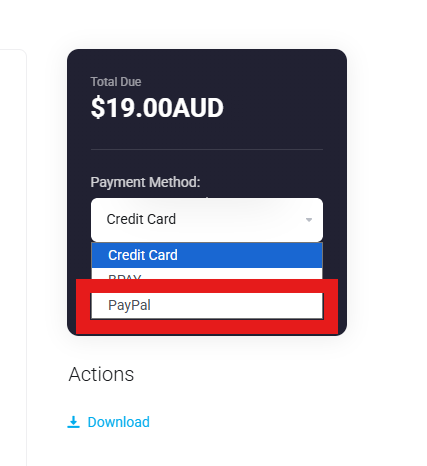
5. You will then be prompted to enter and confirm your PayPal details. File in the required information to continue
IMPORTANT NOTE
If the invoice is overdue, only the 'Make Payment' option will be available - this is because PayPal subscriptions can only be set up for invoices that are NOT overdue.
If your invoice is overdue, you will need to pay this invoice using a different method, and then setup the subscription using the next invoice.