How to enable cPanel 2FA
Enabling cPanel 2FA strengthens your hosting environment by adding an extra layer of security. It requires a second form of verification beyond your password. This additional protection helps prevent unauthorised access, ensuring that your sensitive data remains secure.
1. Login to cPanel (https://networkdynamics.com/support/how-do-i-login-to-cpanel/)
2. Scroll down to Security and click on 'Two-Factor Authentication':

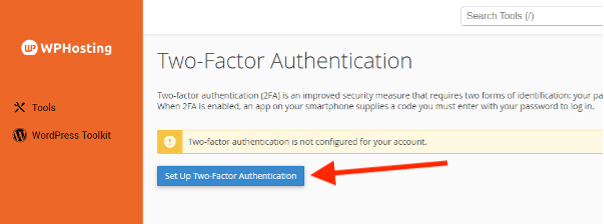
3. Click on 'Set Up Two-Factor Authentication'
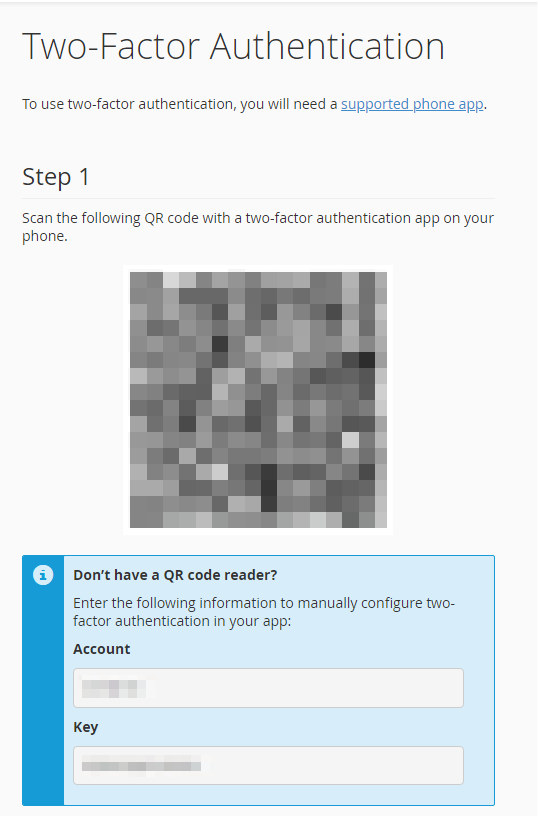
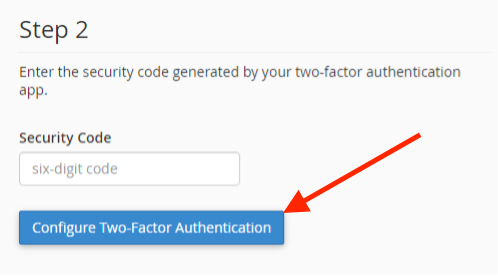
4. Next, you will see a QR code with a screen asking you to connect your app. Open up your preferred authenticator (examples include Google Authenticator, 1Password, LastPass etc) app of choice and scan the QR code and then enter the authentication code from the authenticator app and click 'Configure Two-Factor Authentication'.
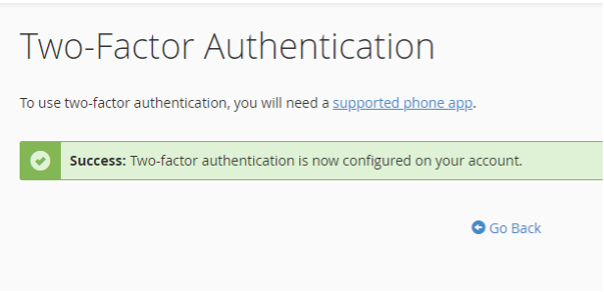
5. Now, you will see the Two-Factor success page to indicate that it has been set up for your cPanel.
In conclusion, after setting up cPanel 2FA by linking your authenticator app and verifying your device, you gain not only enhanced security but also practical features like backup codes for recovery. Moreover, the straightforward setup process and ongoing support for configuration adjustments ensure that your account remains secure while providing flexibility for future management.