How to change your default billing method
If you need to change your default billing method, our step-by-step guide is designed to help. It makes updating your payment details in the Network Dynamics Client Area simple and straightforward. With just a few clicks, you can change your default billing method. This ensures your account uses your preferred payment option.
1. Navigate to the Network Dynamics Client Area, and login to your account
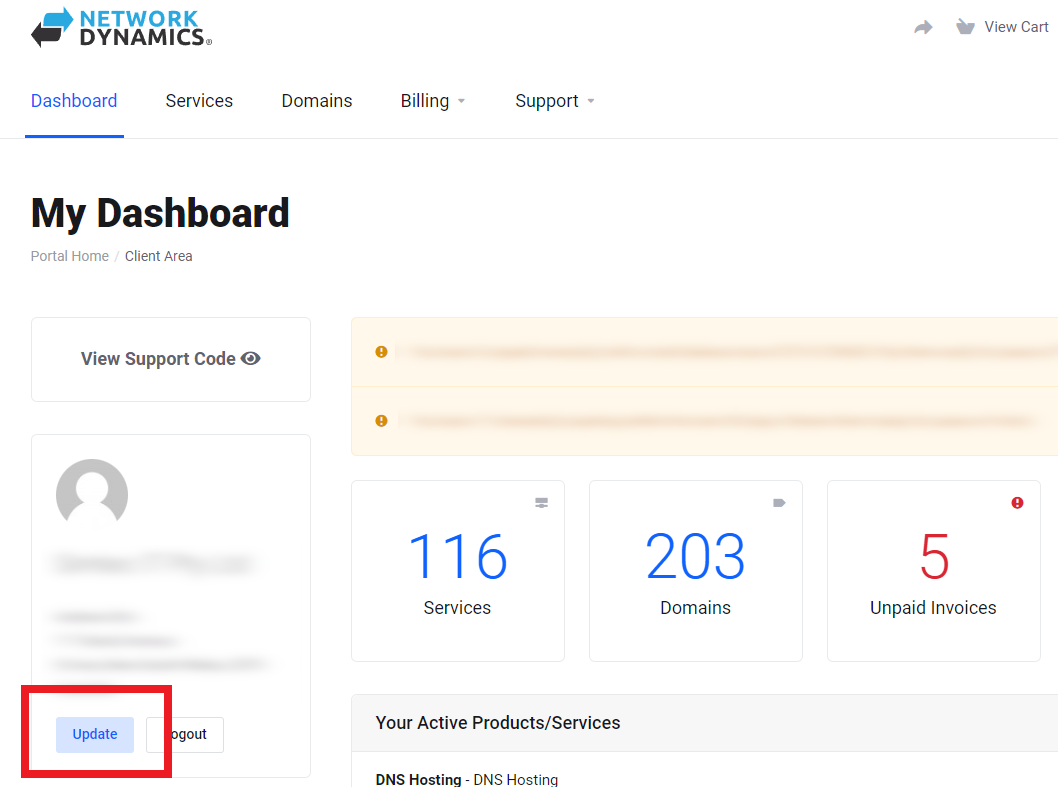
2. In the left sidebar, under the current user info, click 'Update'.
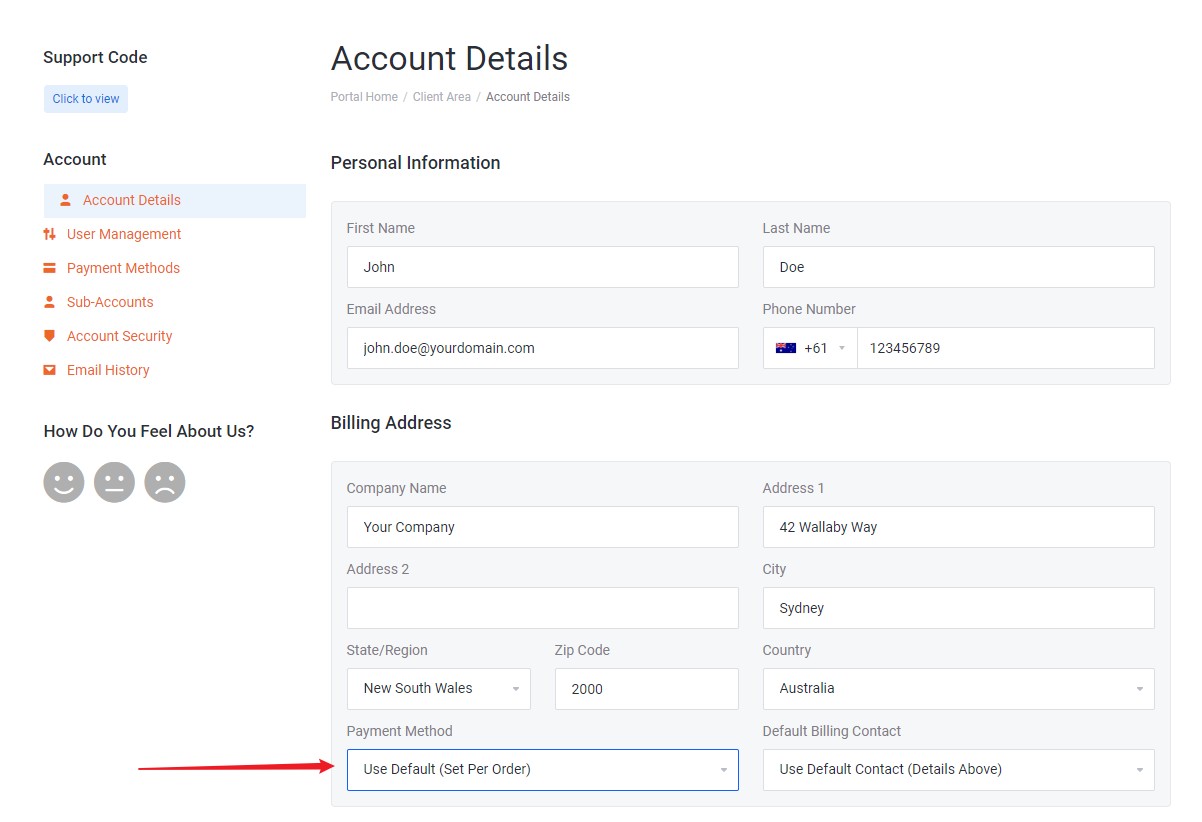
3. Under the 'Billing Address' subheading, select your payment method. The default option is 'Per Order', meaning each product uses the billing method you choose during checkout.
4. Scroll to the bottom of the page and click 'Save Changes'
Please Note: We do not support bank transfer or ‘EFT’ – credit card, PayPal and BPAY are our accepted forms of payment.